What’s new?
-
User login: New email login & two-factor authentication (2FA)
-
Multilingual support: German, English, Italian
-
Free Seating: Flexible workstation selection at the reception desk
-
Call Cards / History: Revised call cards and history
-
Timeline: New elements in the timeline
-
Desktop search: Search for guests and phone numbers
-
Settings: Admins can change certain settings
1. User Login
Login has become more flexible: In addition to Google, users can now also log in traditionally with an email address and password.
-
Email login: Login with email address and password.
-
Google login: Still possible directly via Google.
-
2FA: Optional second factor via authenticator app.
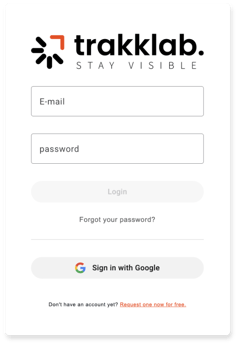
Two ways to log in
The login screen now displays both options side by side: email/password and Google.
- New: Login with email and password.
- Existing: Login via Google remains available.
- Important: Both methods can be used in parallel.
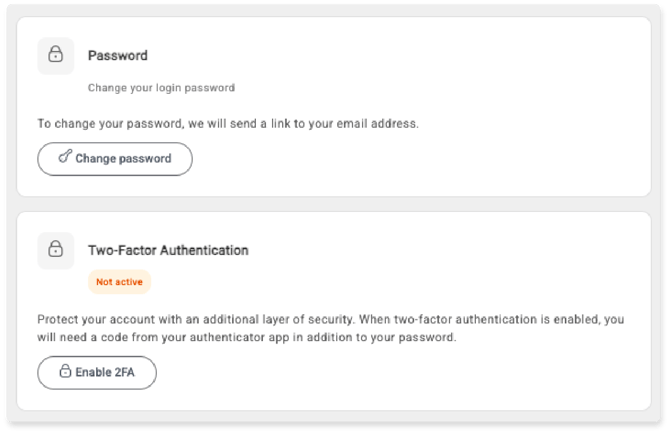
Password change via email:
For security reasons, the password reset flow runs through the stored email address.
When changing or resetting the password, a link is sent by email.
Optional two-factor authentication:
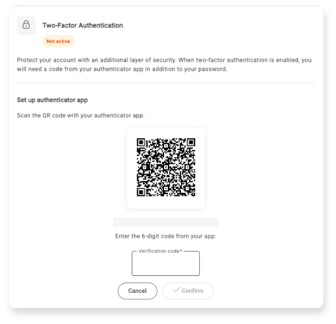
Users who want to protect their account additionally can activate 2FA via an authenticator app.
- Scan the QR code with the authenticator app.
- Enter and confirm the 6-digit code.
- Afterwards, the app code is also requested during login.
Google and email accounts merged:
If a user uses the same email address for the classic login and Google login, the accounts are merged.
- No duplicate account: The identity remains unique, even when multiple login methods are used.
- Flexible access: Users can choose email/password or Google depending on the situation.
2. Multilingual Support:
trakklab.hello now supports German, English, and Italian
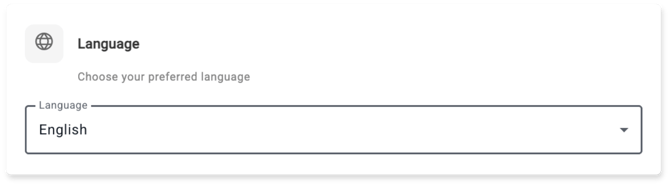
Language selection in the portal
The language can be selected individually for each user.
Click here to open the settings.
This area can be accessed via the user profile in the top left > Settings.
3. Free Seating
Free Seating enables flexible workstation selection at the reception desk in trakklab.hello. Reception staff can easily switch workstations, while the call cards being processed remain clearly assigned to the active employee.
Free Seating login takes place in two steps:
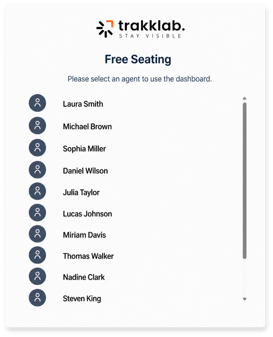
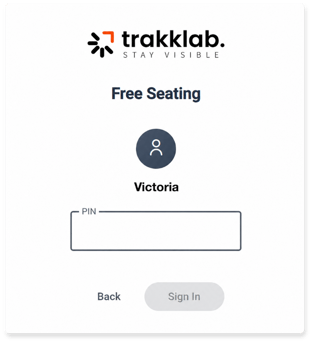
- Log in to the portal as a Free Seating Desk: The workstation is first logged in as a Free Seating Desk.
- Select the reception employee: The responsible reception employee is then selected for this workstation and confirmed by PIN. This makes it clear which reception employee is currently working at the station and which call cards are assigned to this session.
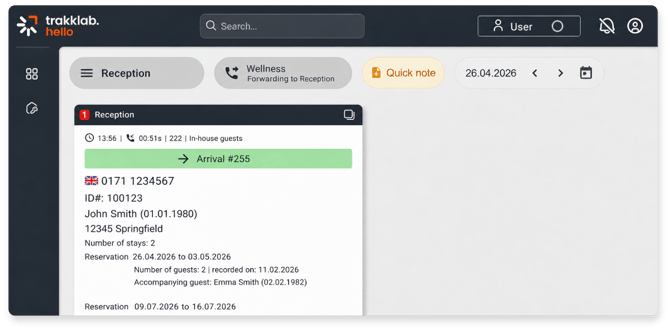
Logged-in Free Seating user
The active Free Seating user is displayed on the right side of the top bar.
Using this button, the current reception employee can log out so that another user can take over. The workstation remains logged in; only the active Free Seating user is changed.
User assignment per workstation and switchboard (Admin)
Employees can be specifically assigned to workstations and switchboards by the admin.
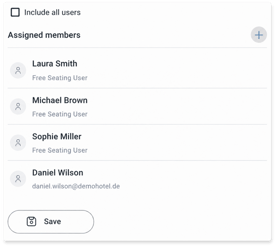
Per workstation
The selection of displayed employees can be restricted per workstation.
Per switchboard
Employees can be assigned to one or more switchboards.
4. Call-Card / History
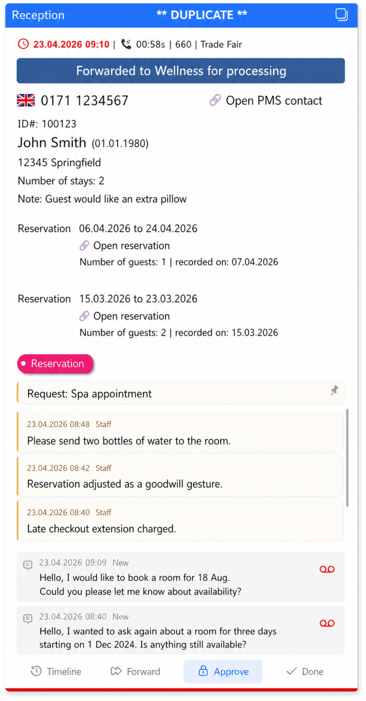
The Call Card and History have been reorganized so that important information is easier to recognize and access more quickly.
- Call date: Missed or pinned calls remain visible for up to 7 days. They are marked in red and displayed with the respective date.
- Country flag: A matching country flag is automatically displayed based on the phone number.
- Forwarded to: If a call has been handed over to another switchboard for processing, this is shown directly in the Call Card. Also new:
- Forwarded Call Cards can be returned.
- Tags can be assigned both for the original switchboard and the forwarded switchboard.
- Tag selection: The previous button has been replaced by a clearer selection bar.
- Notes: Notes can now be entered across multiple lines. In addition, relevant notes are displayed directly if they are from the same day or have been pinned.
- Voicemail: Voicemail messages from the same day appear directly in the lower area of the Call Card.
- Action buttons: The actions Timeline, Forward, Release, and Done have been rearranged at the end of the card.
Tip: Optionally, it can be specified that a Call Card can only be completed once tags or notes have been entered.
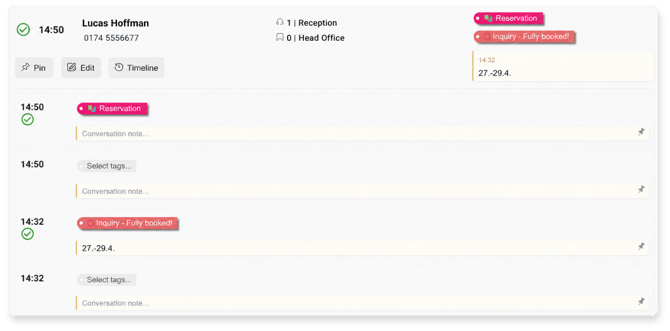
Call History
In the history, all related tags, notes, and voicemails are summarized in the main entry.
The displayed status corresponds to the most relevant status of the existing calls.
For example, a callback request takes priority over a missed call.
5. Revised Timeline:
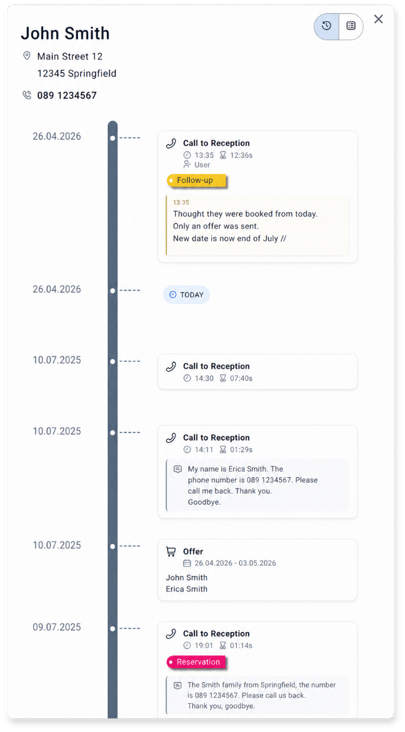
The timeline has been revised and made clearer. Important information is now structured more clearly and can be grasped more quickly:
- Relevant contact details are displayed directly in the header. This makes the most important information about the contact immediately visible.
- Tags, notes, and voicemails are displayed in the body of the timeline, making them easier to distinguish from one another.
- For calls, it is shown which reception employee handled the call.
- New card design: Individual timeline entries are now displayed as cards. This makes the content better structured and easier to read.
6. Desktop-Suche:
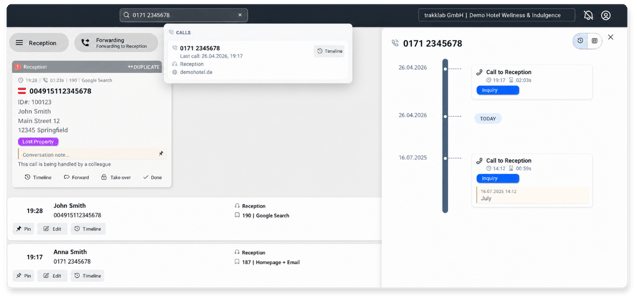
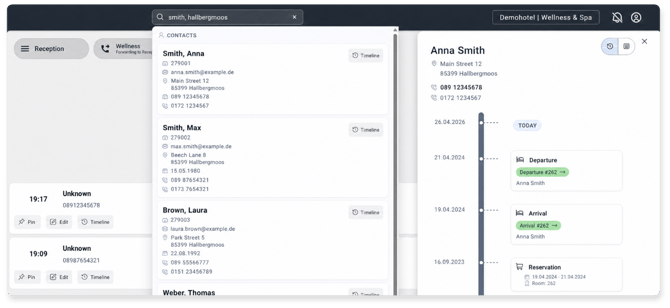
The new desktop search makes contacts, guests, and phone numbers searchable directly from the portal. Using full-text search, users can search by name, location, email address, and other contact details.
- The results list opens above the current workspace and allows direct access to the respective timeline.
- Email search: Email addresses can be found directly via desktop search.
- Phone number search: Phone numbers can be searched directly. It does not matter which format the phone number is entered in.
- Phone numbers without a guest profile: If no guest profile exists for a phone number, matching calls are displayed. The results provide direct access to the timeline.
Examples:
-
004985493069700
-
085493069700
-
08549/3069-700
The phone number is recognized and found regardless of formatting.
-
Results with context: Search results are displayed with relevant context, making it easier to quickly identify which contact, guest, or call is meant.
7. New Settings for Admins
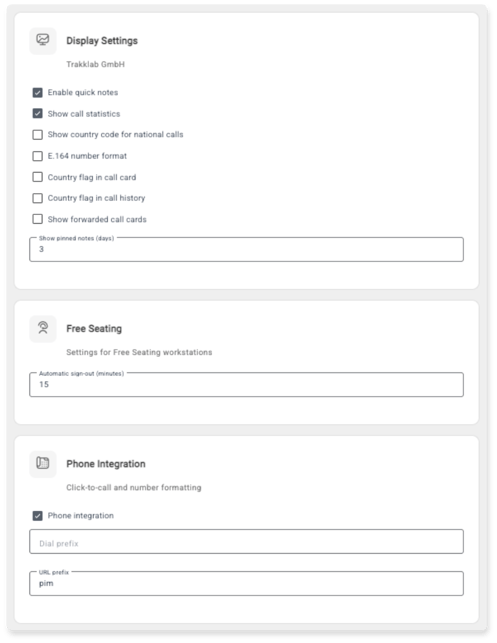
New settings centrally bundle display options, Free Seating behavior, and telephone integration in one place. The most important options can only be configured by customer admin users.
- Display: Central display options are available for Call Cards, History, Quick Notes, and number formats.
- Free Seating: Automatic logout from Free Seating workstations can be configured individually.
- Telephone integration: Click-to-call and phone number formatting can be configured centrally.
The settings are opened via the top menu: Top menu > Settings.